Mail · Guide
Getting Started with Mail
Sign in, find your way around the inbox, and learn how folders, multiple accounts, and search work in Elastbiz Mail.
On this page
Signing in
Open Mail from your Elastbiz workspace and sign in with your organization credentials. Your mailbox loads directly in the browser — there is nothing to install to start reading and sending mail.
The inbox
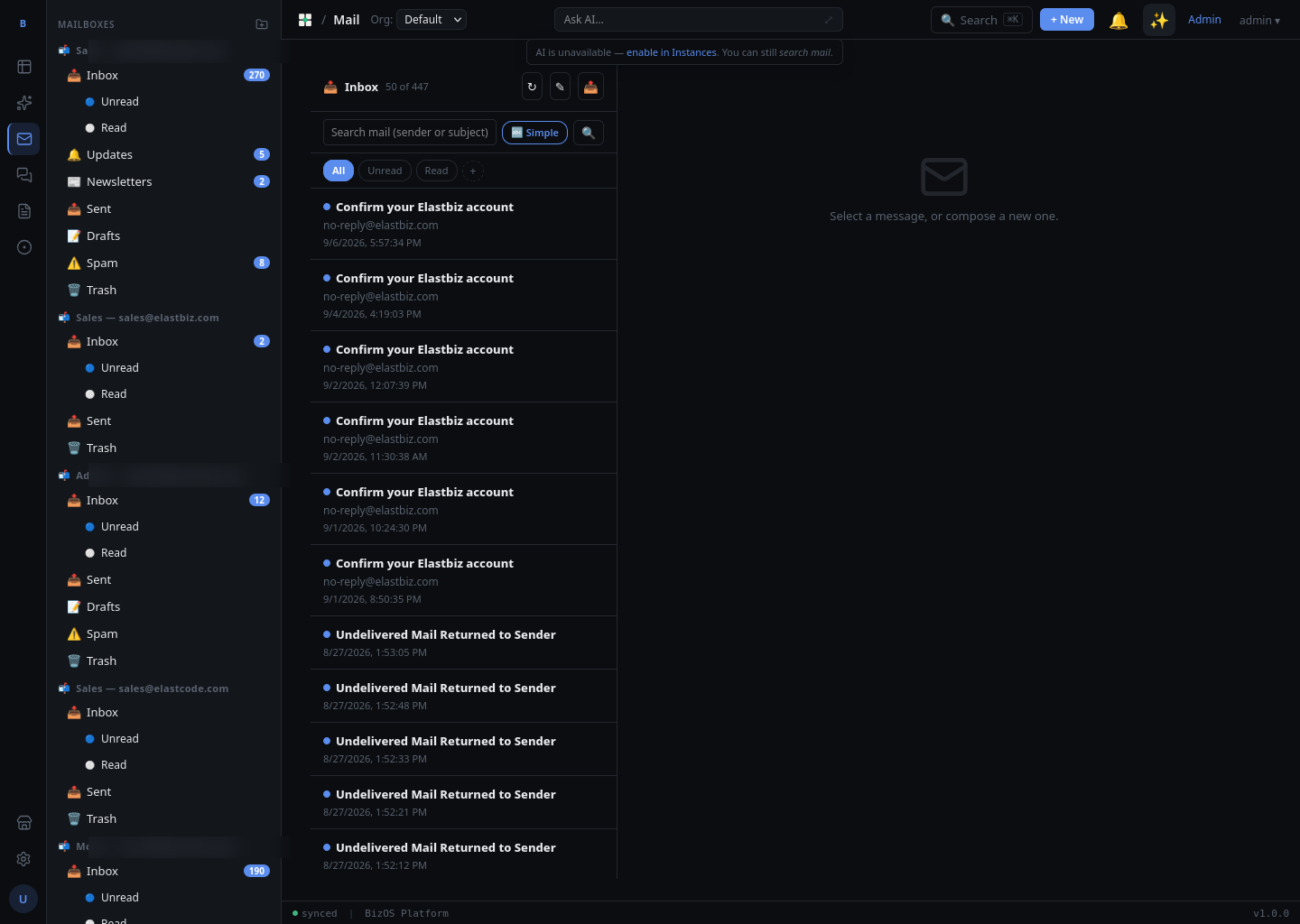
When Mail opens you land in your Inbox. The message list shows the sender, subject, a short preview, and the time received; unread messages are highlighted. To open a message, click it in the list. AI classification labels (spam, category, invoice, service) appear alongside messages so you can triage at a glance — see the AI features guide.
Folders
The folder list groups your mail so the important messages stay in front. To switch folders, click a folder name in the sidebar.
- Inbox — new mail addressed to you.
- Updates — automated notifications and transactional mail, kept out of the main inbox.
- Newsletters — subscriptions and bulk mailings.
- Sent — messages you have sent.
- Drafts — messages saved but not yet sent.
- Spam — mail flagged as unwanted.
- Trash — deleted messages, kept until purged.
You can add your own folders — see New folder in the admin guide.
Reading a message
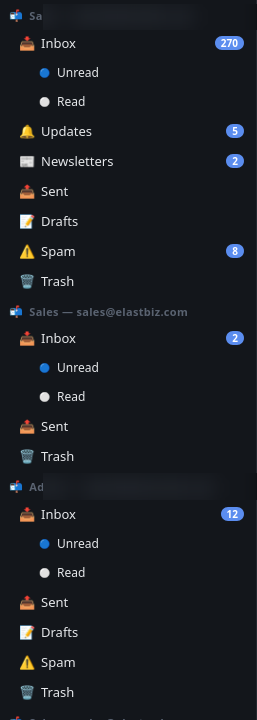
Click any message to open it in the reading pane. From here you can reply, reply all, or forward, download any attachments, and — for a longer thread — request an AI summary or ask the AI a question about the message.
Multi-account sidebar
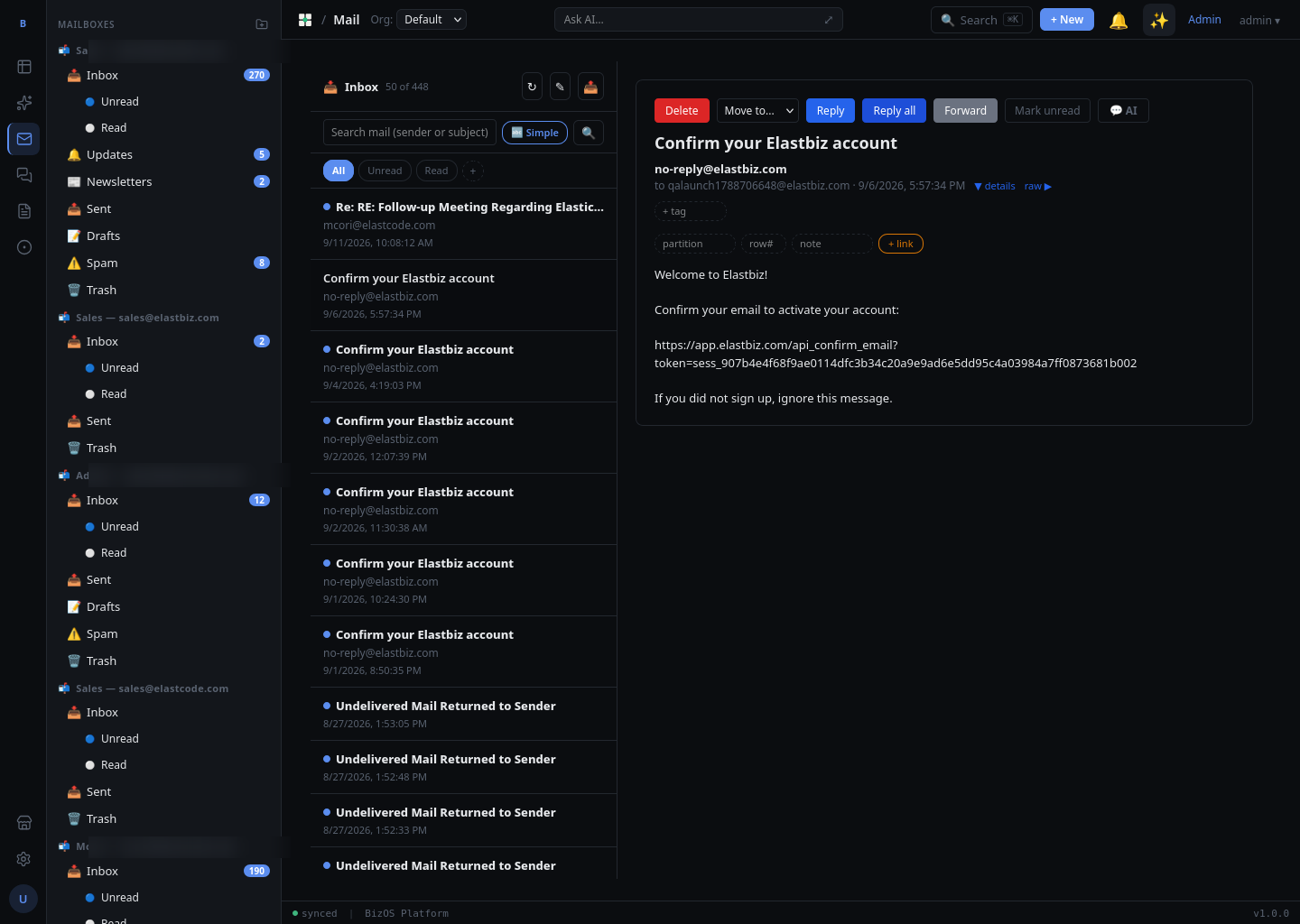
If you have access to more than one mailbox — for example a personal address and a shared mailbox — each appears in the account list. To switch mailboxes, click the account at the top of the sidebar; the folder list and message list update to that mailbox.
Search: Simple vs AI
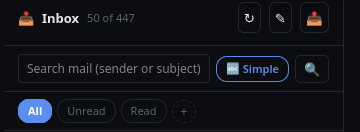
Use the search box at the top of the message list to find mail. There are two modes:
- Simple search matches your words against sender, subject, and message text — best when you know a name, an address, or an exact phrase.
- AI search understands a plain-language request such as "the invoice from last month" and finds messages by meaning, not just keywords.
To switch, toggle between Simple and AI next to the search box, then type your query and press Enter.
Connect a mail app — Thunderbird, Outlook, phone (IMAP/POP3)
You can read and send your Elastbiz mail from any standard desktop or phone mail app over IMAP or POP3, alongside the web interface.
- IMAP (recommended) keeps your mail on the server and syncs it to every device — read a message on your laptop and it shows as read on your phone. Folders, flags and drafts stay in sync.
- POP3 downloads messages to one device and (by default) removes them from the server. Use it only if you deliberately want a single-device, offline copy.
Step 1 — Generate an app password
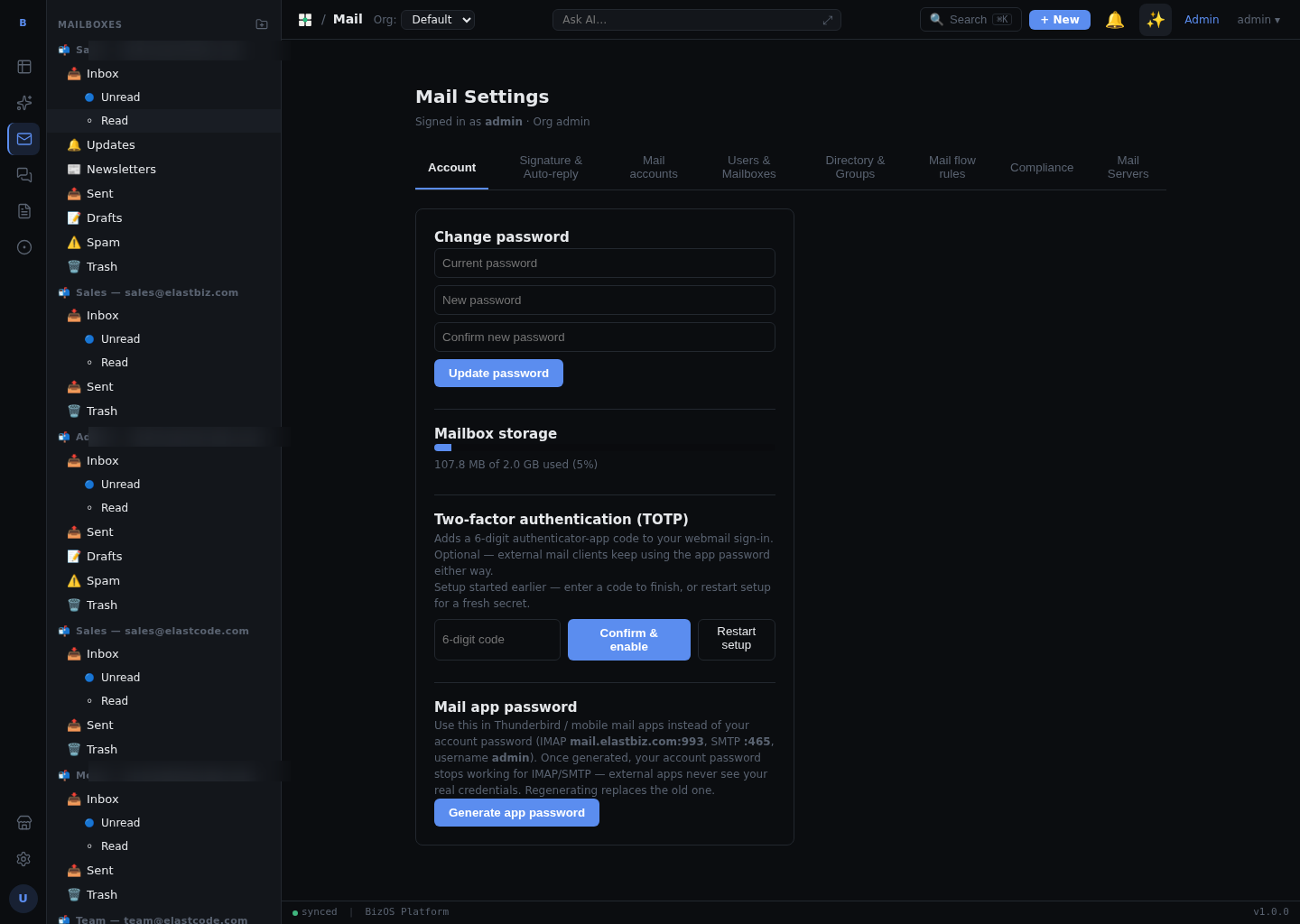
External mail apps use an app password, not your normal login password. In Mail go to Settings → Account → Mail app password and click Generate app password. Copy it — you paste it into the mail app in place of your password. Regenerating a new one invalidates the old, and your normal password stops working for IMAP/SMTP once an app password is in use (your web login is unaffected).
Step 2 — Server settings & ports
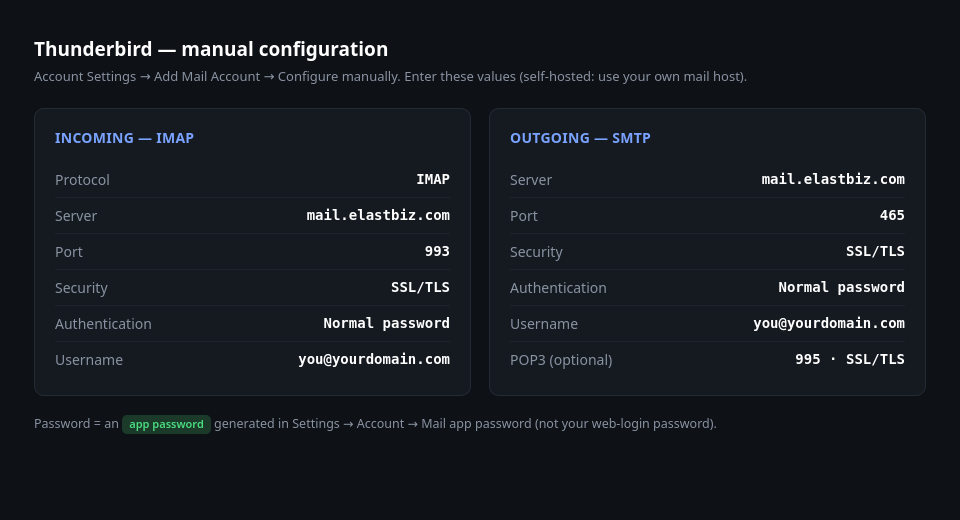
Use these values (on a self-hosted install, replace mail.elastbiz.com with your own mail host):
| Purpose | Server | Port | Security |
|---|---|---|---|
| Incoming — IMAP | mail.elastbiz.com | 993 | SSL/TLS |
| Outgoing — SMTP | mail.elastbiz.com | 465 | SSL/TLS |
| Incoming — POP3 (if enabled) | mail.elastbiz.com | 995 | SSL/TLS |
- Username: your full email address (e.g.
you@yourdomain.com). - Password: the app password from Step 1.
- Authentication: normal password.
Step 3 — Set it up in Thunderbird
- Open Account Settings → Account Actions → Add Mail Account.
- Enter your name, full email address, and the app password. Click Continue.
- Choose Configure manually and enter the settings above: Incoming IMAP,
mail.elastbiz.com, port 993, SSL/TLS, normal password; Outgoing SMTP,mail.elastbiz.com, port 465, SSL/TLS, normal password. - Click Re-test, then Done. Your mailbox syncs into Thunderbird.
Outlook, iPhone & Android
- Outlook: File → Add Account → Advanced/Manual → IMAP, using the same servers, ports and app password.
- iPhone / iPad: Settings → Mail → Accounts → Add Account → Other → Add Mail Account → IMAP, same values.
- Android (Gmail app or others): Add account → Personal (IMAP) → enter the servers, ports and app password.
Admins can enable/disable the SMTP/IMAP/POP3 listeners and install the TLS certificate under Server & TLS config.
Ready to write? See Composing & sending mail, or explore the AI features.