Mail · Guide
Composing & Sending Mail
Write new messages, reply and forward, format with HTML, attach files, and let signatures and contact autocomplete do the routine work for you.
On this page
Composing a message
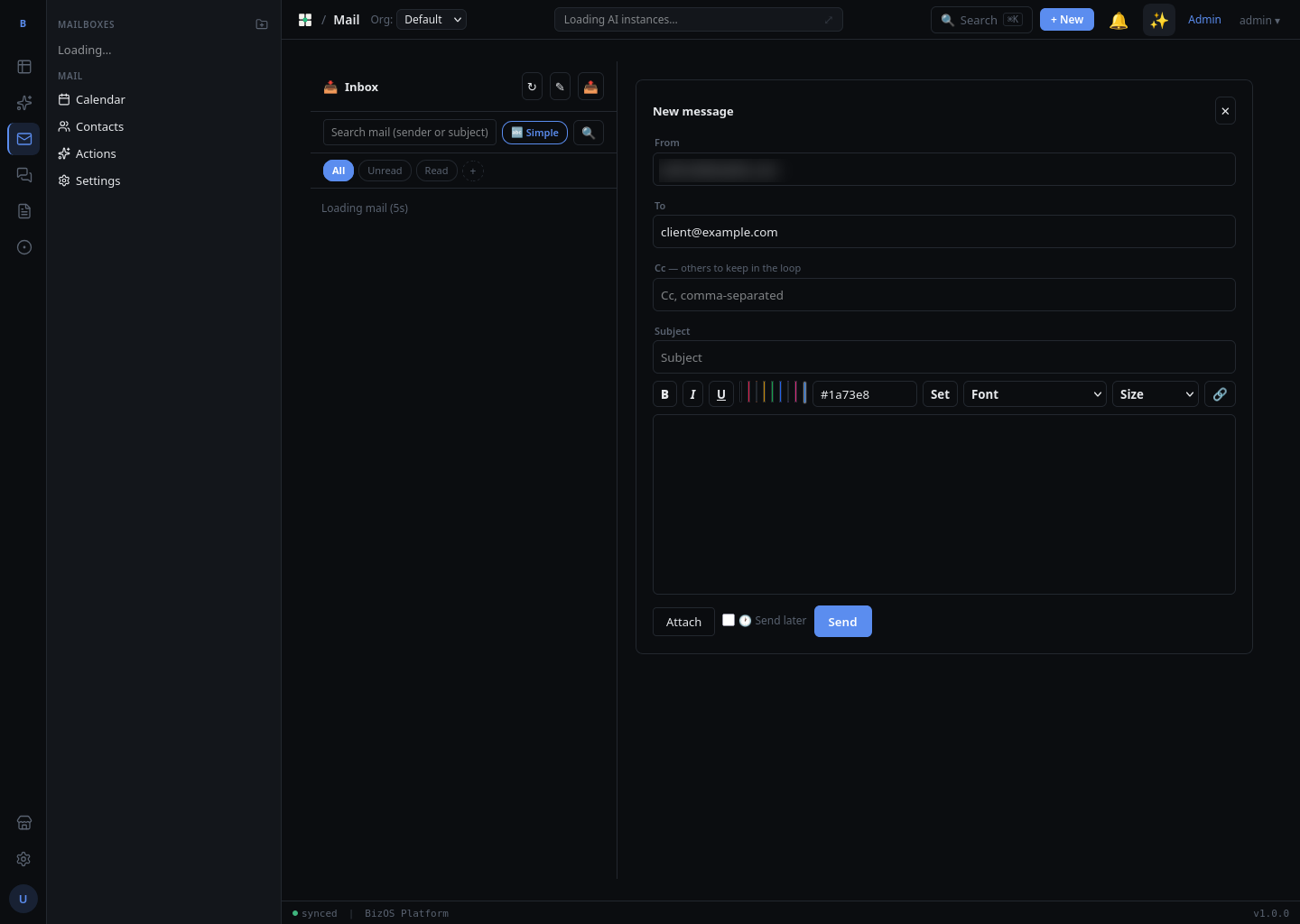
To start a new message, click Compose. Add recipients in the To field (with Cc and Bcc available), enter a subject, write your message, and click Send. If you are not ready to send, the message is kept in Drafts so you can finish it later.
Reply & forward
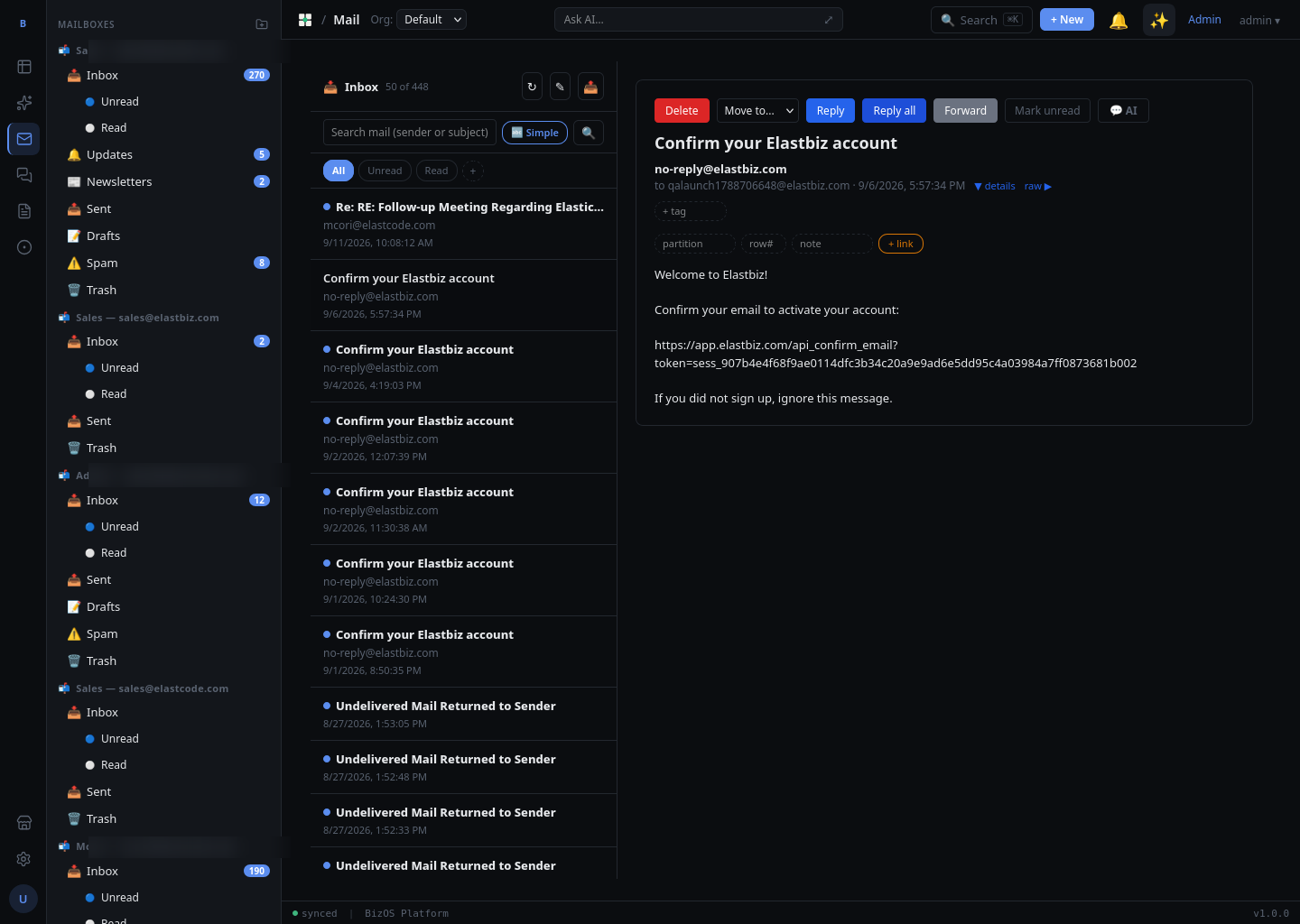
Open a message and choose Reply to answer the sender, Reply all to answer everyone on the thread, or Forward to send it on to someone new. The original text is quoted for context; forwarded messages carry their attachments with them.
HTML formatting
The compose editor supports a rich HTML body, so you can apply bold and italics, bulleted and numbered lists, links, and headings. Use the formatting toolbar above the message body to style your text as you write.
Attachments
To attach a file, click the attachment (paperclip) control in the compose window and choose a file to upload. When you receive a message with attachments, click an attachment to download it to your device.
Signatures
A signature is text added automatically to the bottom of your messages. Set yours in Mail settings and it is appended each time you compose — see Signature & auto-reply in the admin guide.
Contacts & autocomplete
As you type in the To, Cc, or Bcc field, Mail suggests matching people from your contacts and the organization's Global Address List (GAL). Pick a suggestion to fill in the address without typing it in full. For managing People and groups, see Contacts & People.
Not sure who a long thread is between, or what it is asking? Open it and use AI summary before you reply.