Mail · Guide
Settings & Administration
Configure your own mailbox and, if you administer the organization, manage shared mailboxes, mail-flow rules, compliance, security, and the mail server itself.
On this page
Signature & auto-reply
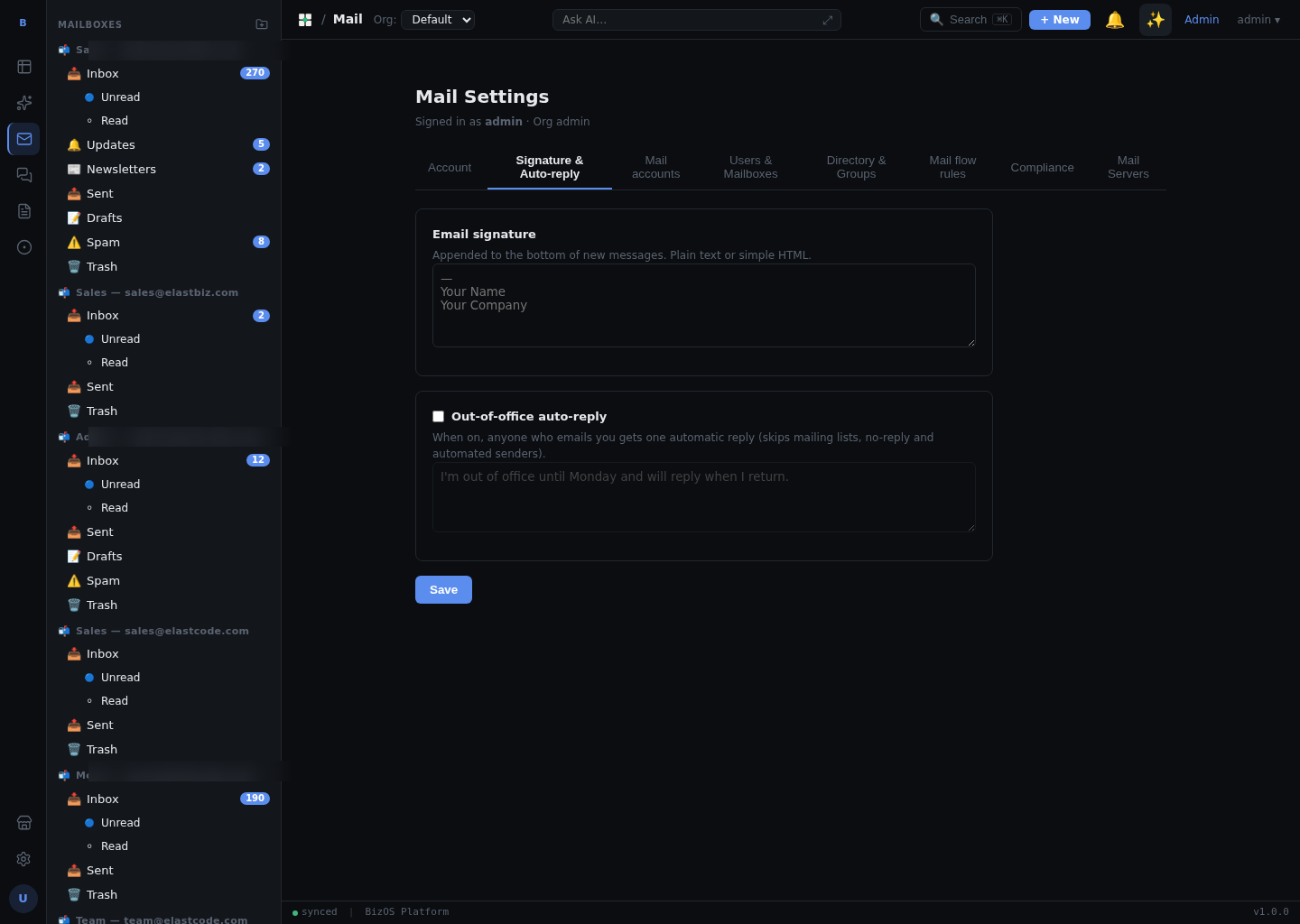
In settings, set your signature to have it appended to messages you compose, and turn on an auto-reply (out-of-office) to send an automatic response while you are away. To enable auto-reply, write the message and switch it on.
Storage quota
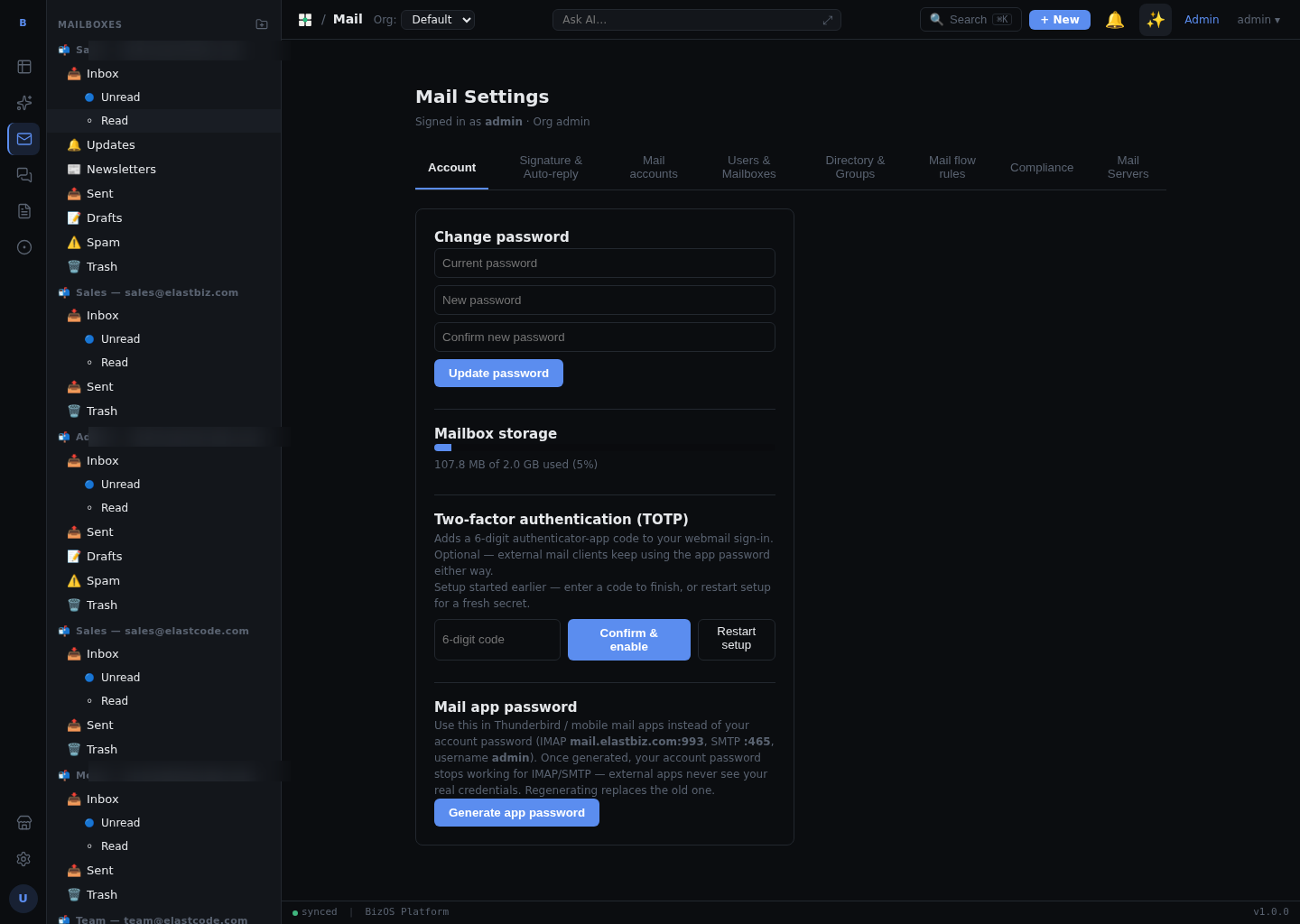
Settings show how much of your mailbox storage quota is in use. Administrators can also change a mailbox's limit with the Set quota control — open the mailbox's settings and enter the new limit.
New folder
To create a folder of your own, use the New folder control in the folder sidebar and give it a name. It then appears in the sidebar alongside the standard folders and you can file mail into it.
Shared mailboxes & ACLs
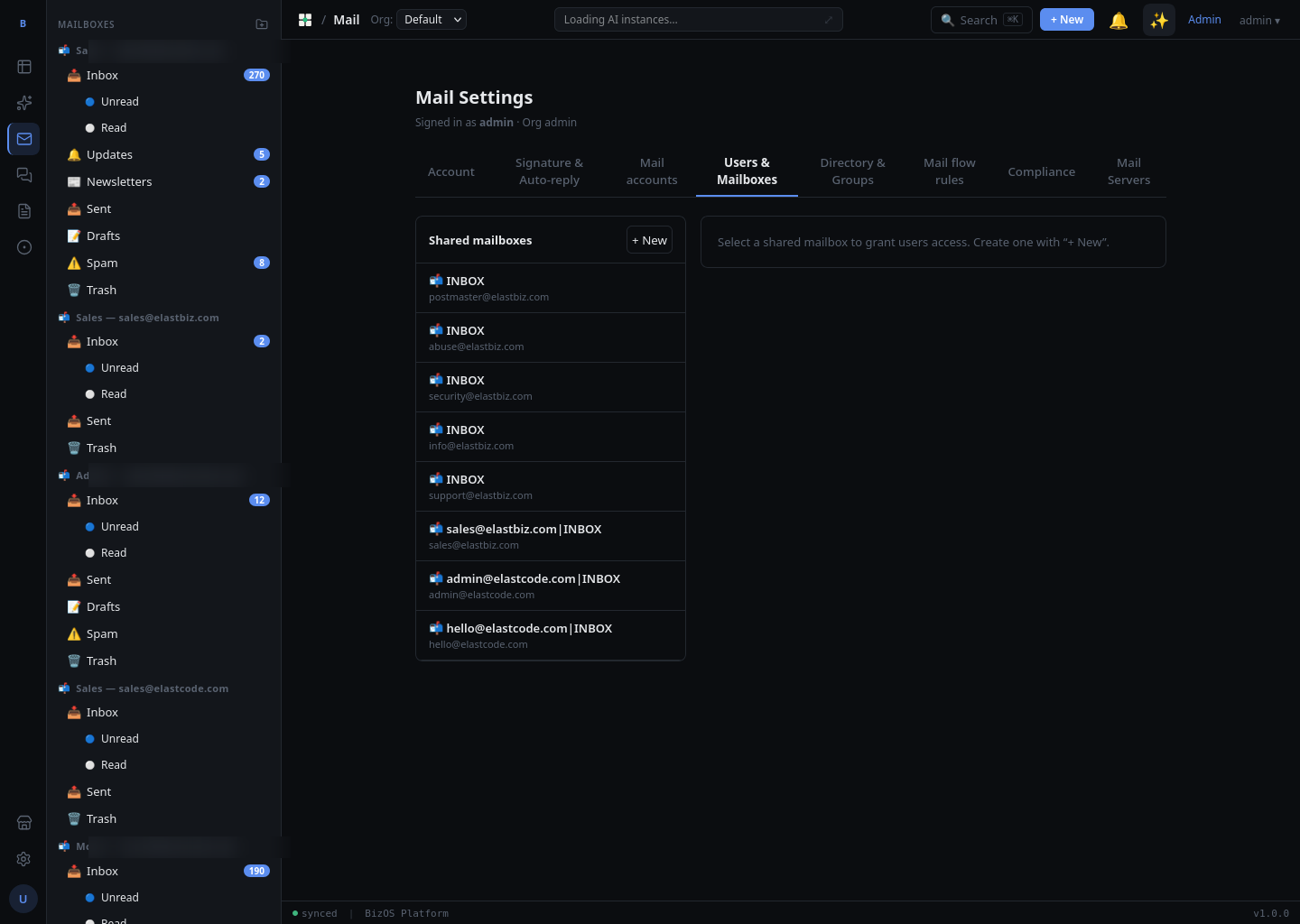
A shared mailbox is one that several people access — for example support@ or billing@. Access is governed by ACLs (access control lists), which set who can read, send from, or manage the mailbox. Shared mailboxes you can access appear in your multi-account sidebar.
Mail-flow rules
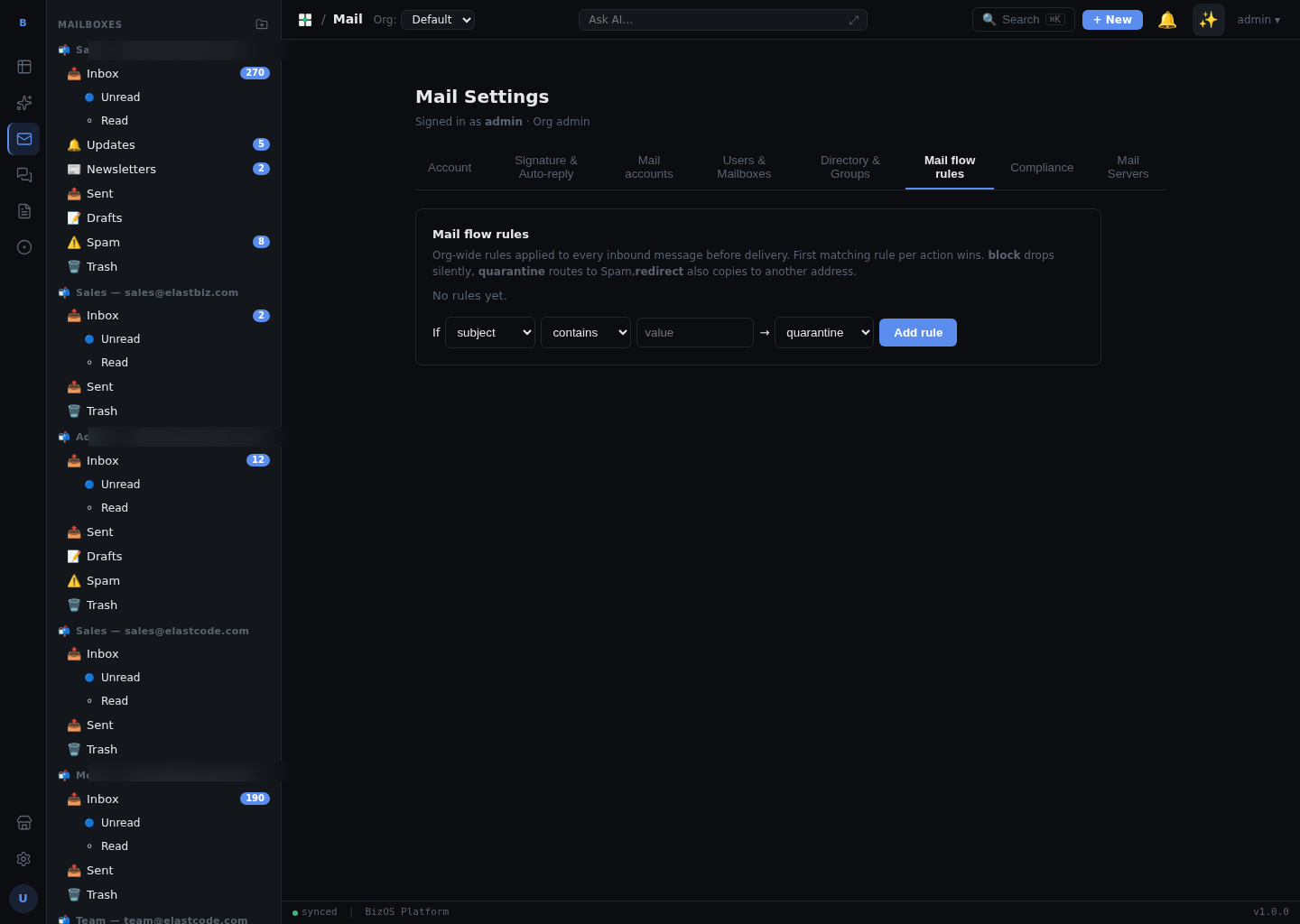
Mail-flow rules act on mail as it moves through the organization — for example routing, tagging, or blocking messages that match a condition. Administrators define these rules centrally so they apply across mailboxes.
Mail-flow rules are organization-wide and set by administrators. They are separate from the personal, plain-language AI Action Rules that act on your own inbox.
Compliance
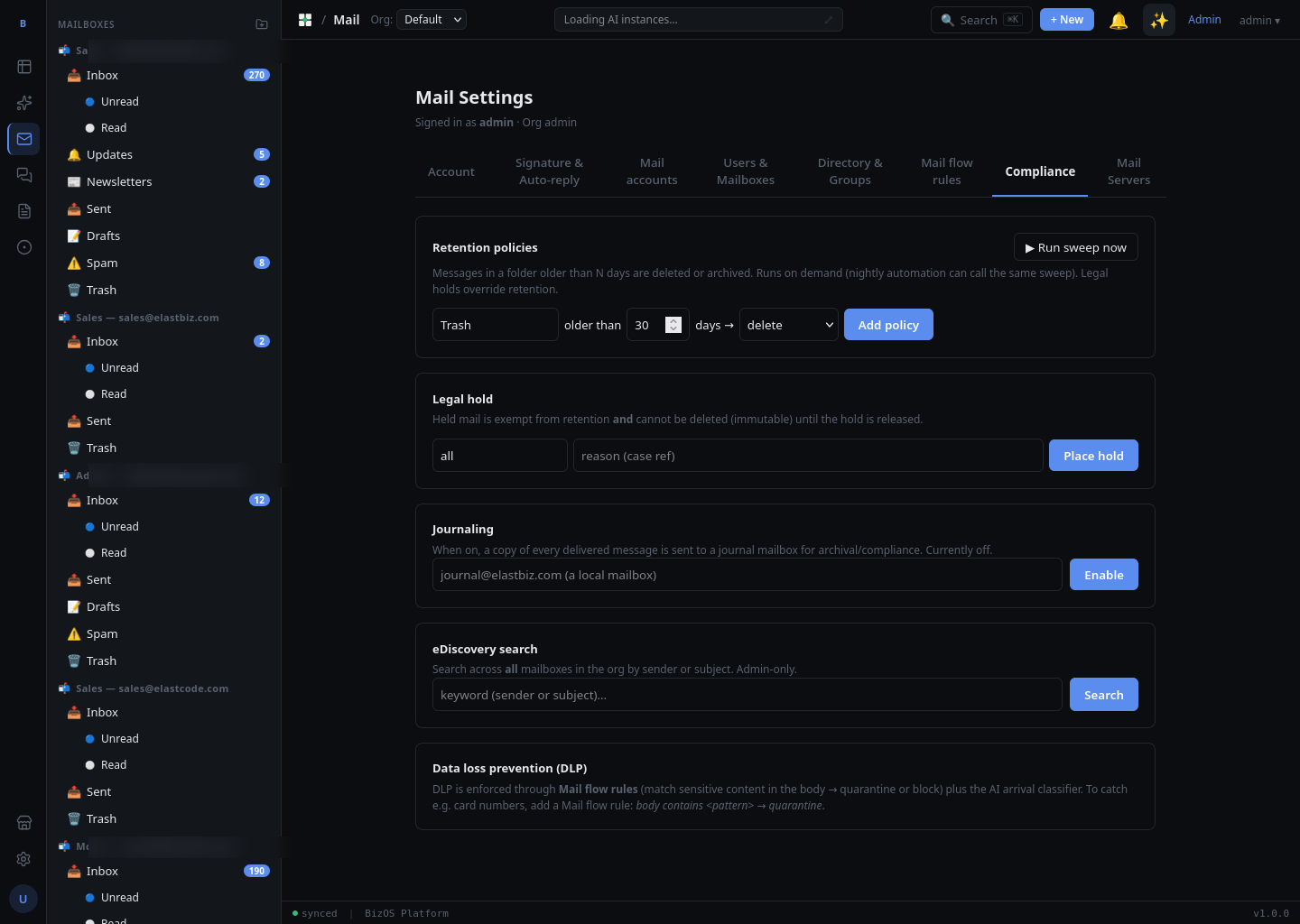
Compliance settings help meet legal and regulatory obligations for mail:
- Retention — keep messages for a defined period.
- Legal hold — preserve a mailbox's mail so it cannot be deleted while under hold.
- eDiscovery — search across mailboxes to find messages relevant to a matter.
- Journaling — record copies of mail for archival.
MFA (TOTP)
Protect your account with multi-factor authentication. Mail supports TOTP — the time-based codes from an authenticator app. To set it up, scan the code shown in security settings with your authenticator app and enter the six-digit code to confirm.
App passwords
To use a desktop or phone mail client such as Thunderbird or Outlook, create an app password and use it in the client's account settings. App passwords let those clients connect over SMTP (sending), IMAP, and POP3 (receiving).
Server & TLS config
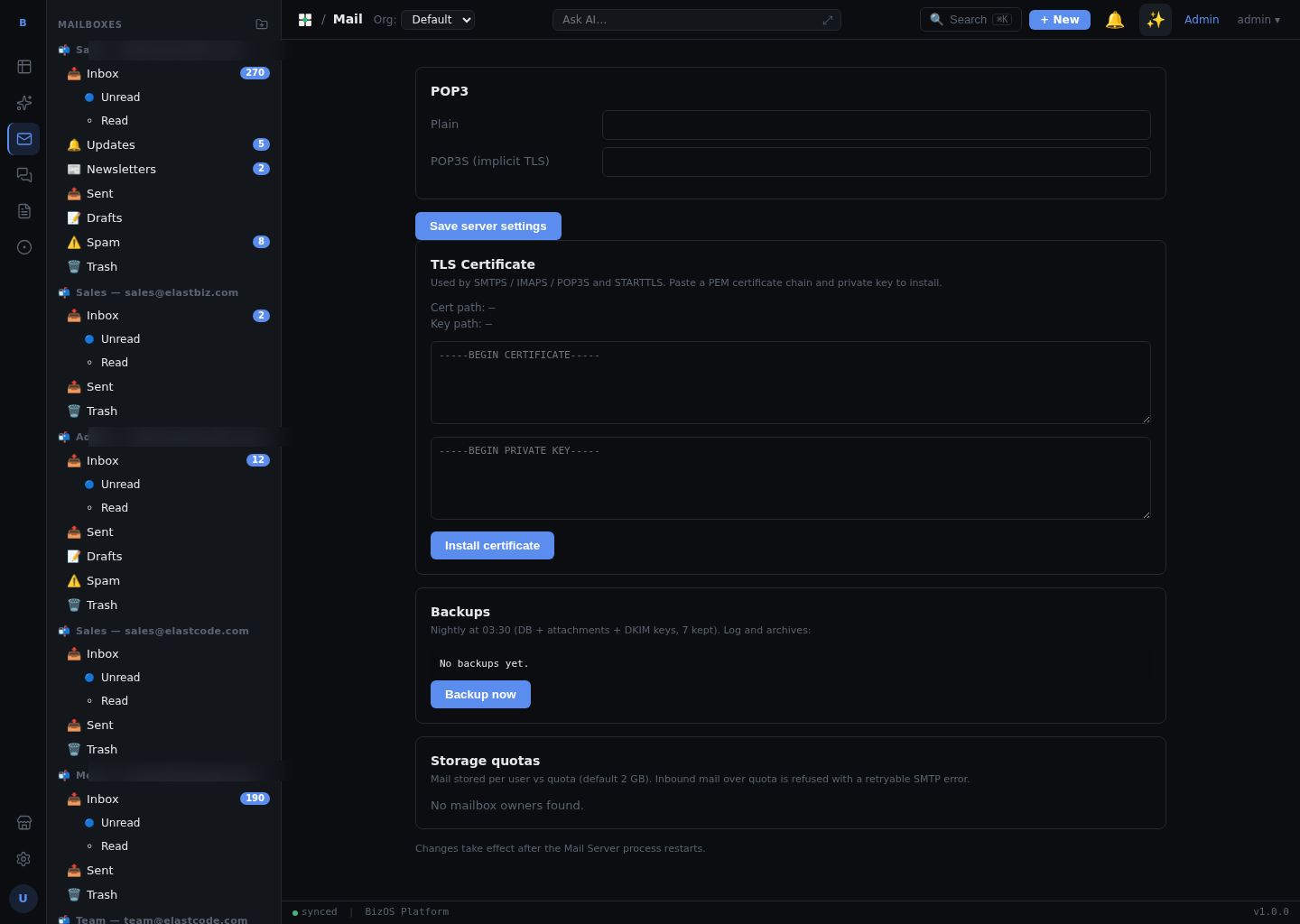
Administrators can review the mail server configuration, including TLS settings that encrypt mail in transit. These settings govern how clients and other mail servers connect securely.
Backups
Backups keep protected copies of mail data so it can be restored if needed. Administrators can review backup status from settings.